
Android Desktop Mode on Pixel 8+ delivers a real desktop experience
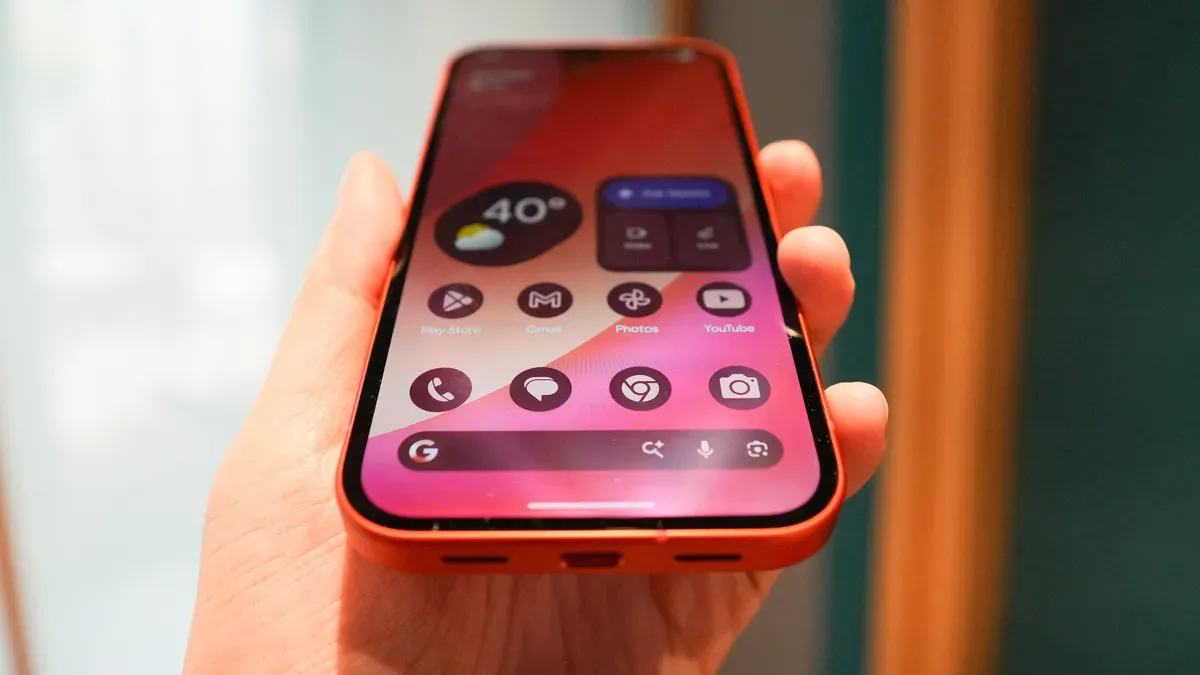
Android Desktop Mode, now available on Pixel 8 and newer phones, converts a handset into a desktop when it’s connected to a monitor, a Bluetooth mouse and a keyboard. In hands-on testing the feature ran smoothly and felt like a true desktop environment. To use it you need a USB-C cable that supports high-speed data; when the phone is connected a prompt lets you choose Desktop or Mirror, and selecting Desktop launches the mode.
The interface includes a bottom panel, a start menu that opens the App Drawer, and the standard pull-down Notification Shade; apps appear in separate, tileable windows so you can work with multiple apps at once. Android 16 on Pixel 8 and newer enables the mode by default — there’s no Developer Options toggle to flip — but you should pair a Bluetooth mouse and keyboard for the full experience.
Note a few practical quirks: the phone’s wallpaper won’t display in Desktop Mode and must be reset after disconnecting, monitors usually need an external power source, and a high-speed cable is required.
android desktop, pixel 8, pixel 8+, android 16, usb-c cable, high-speed data, bluetooth mouse, bluetooth keyboard, app drawer, notification shade