
How I turned my Android phone into the perfect bedside clock
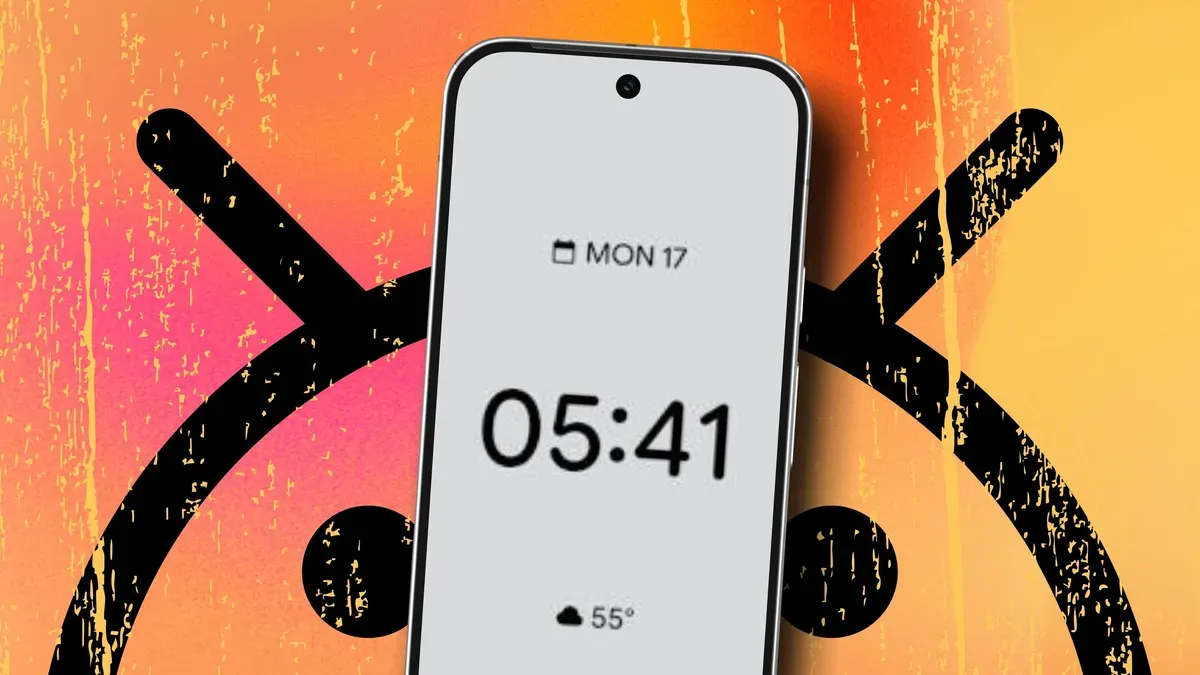
My vision isn’t what it once was, so I can’t rely on my Pixel watch to tell me the time while I’m supposed to be sleeping. I haven’t owned an alarm clock in decades, and recent Android updates make using my phone as a bedside clock more appealing: digital or analog options and plenty of customization.
First, make sure your phone is running the latest available version of Android and enable the Screen saver in Settings > Display & touch > Screen saver. On the Screen saver page, tap “When to show” and choose the option that fits how you charge the phone — for a wireless charging stand I pick “When upright and charging” and “Restrict to wireless charging,” or select “While charging” if you lay it flat.
Enable low light mode at the bottom of the Screen saver page so the clock only appears when the lights are out. Then choose among the four screen savers — Everyday clock, Google Photos, Home Controls, or Pilot Bold Clock.
android updates, pixel watch, bedside clock, screen saver, wireless charging, low light, everyday clock, google photos, home controls, pilot bold