
How to fully back up a PC with CloneZilla (it's free)
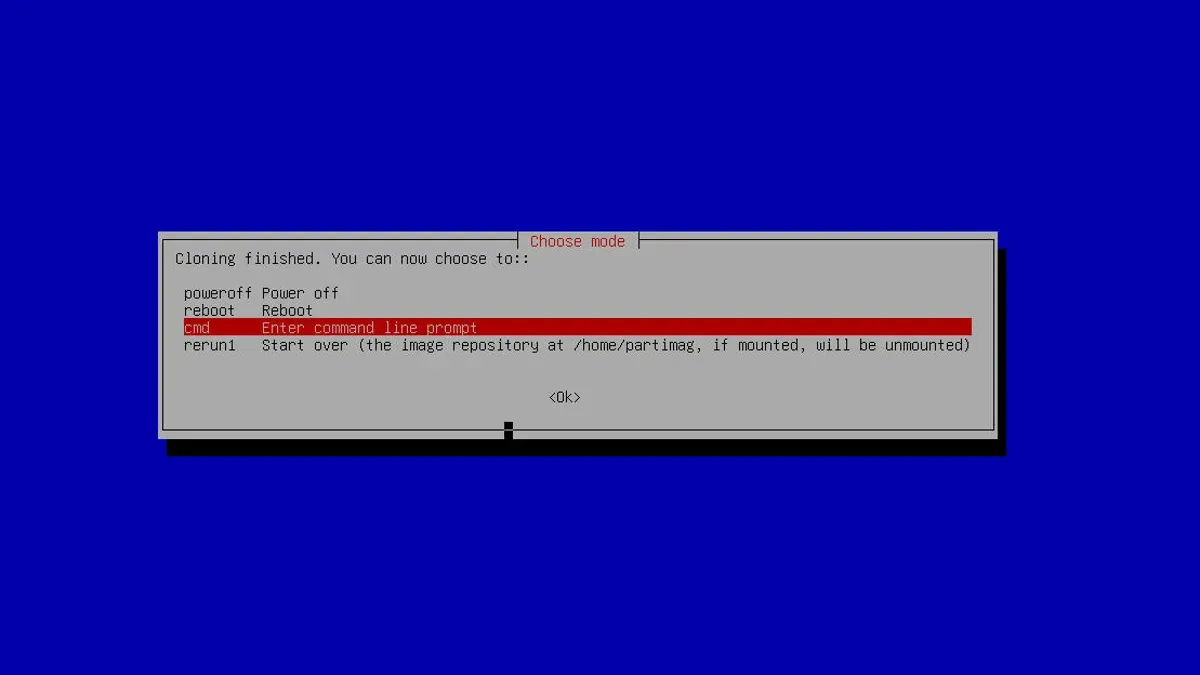
There are few things more worrying than a computer that looks ready to fail. A system image captures everything — operating system, settings, apps and accounts — so you can restore a new machine to exactly where your old one left off. CloneZilla, a stripped-down Linux you boot from USB, makes creating and restoring such images straightforward.
Before you begin, create a bootable CloneZilla USB and attach the external drive that will hold the image. The destination machine must share the same architecture as the source (you can't restore an Intel image to an AMD computer) and its drive must be the same size or larger.
If your system uses UEFI secure boot, use the AMD64 (X86-64) Clonezilla live build, either Debian- or Ubuntu-based. Boot CloneZilla and choose device-image, then local_dev to save to an external drive. The wizard walks you through selecting the target drive, choosing Beginner mode, picking savedisk, naming the image (adding the date helps), and selecting the source disk.
clonezilla, system image, bootable usb, external drive, uefi, secure boot, amd64, x86-64, device-image, savedisk