
How to take full-page screenshots in Chrome on any device
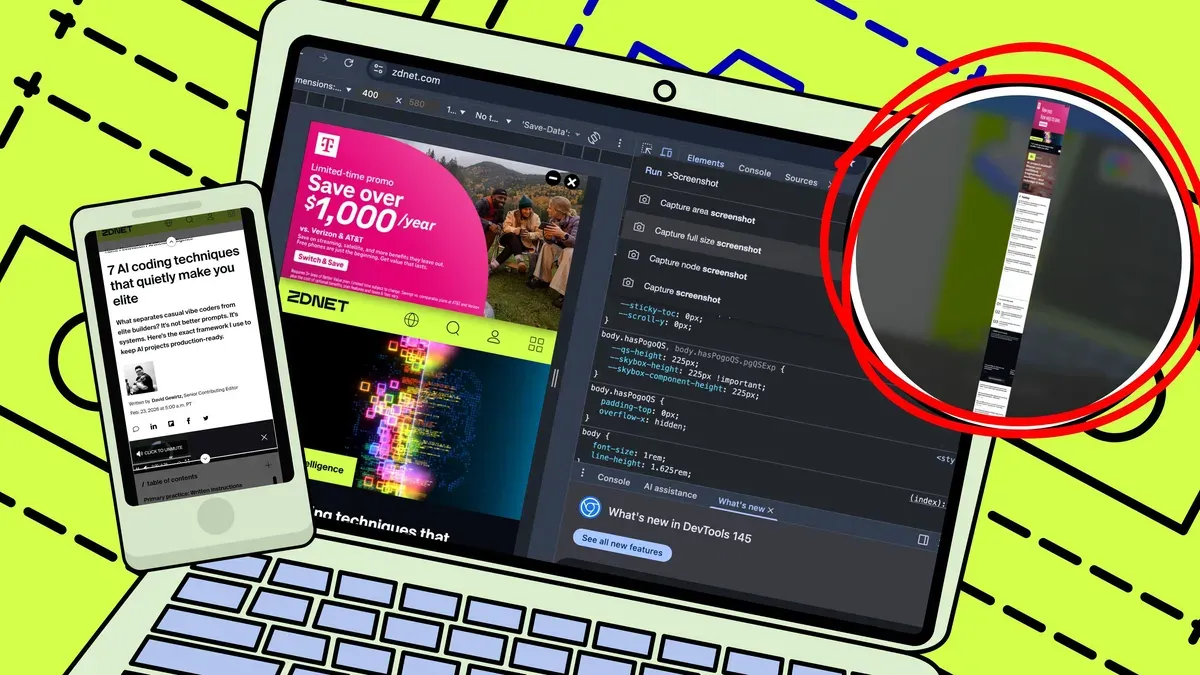
If you need more than a single visible screenshot, Chrome and your device include free tools to capture an entire web page as one file. Rather than stitching multiple images, you can make a single long screenshot or save the page as a PDF using built-in browser and system features.
On desktop, Chrome’s Developer Tools can create a full-page PNG. Open the page, close pop-ups and cookie banners, then open DevTools (Windows/Linux: Ctrl + Shift + I or F12; Mac: Command + Option + I). Open the Command Menu (Windows/Linux: Ctrl + Shift + P; Mac: Command + Shift + P), type “screenshot,” and choose Capture full-size screenshot — Chrome will download a PNG of the whole page.
Alternatively, use Print (Ctrl + P or Command + P), set Destination to Save as PDF, enable Background graphics if desired, and Save. On a Mac you can open that PDF in Preview and export to PNG or JPEG if you prefer images. Chrome on iPhone does not include a built-in full-page image option, but iOS supports Full Page captures.
chrome, full-page screenshot, developer tools, command menu, png, pdf, print, background graphics, mac, iphone