
I switched password managers without losing a single login - here's how
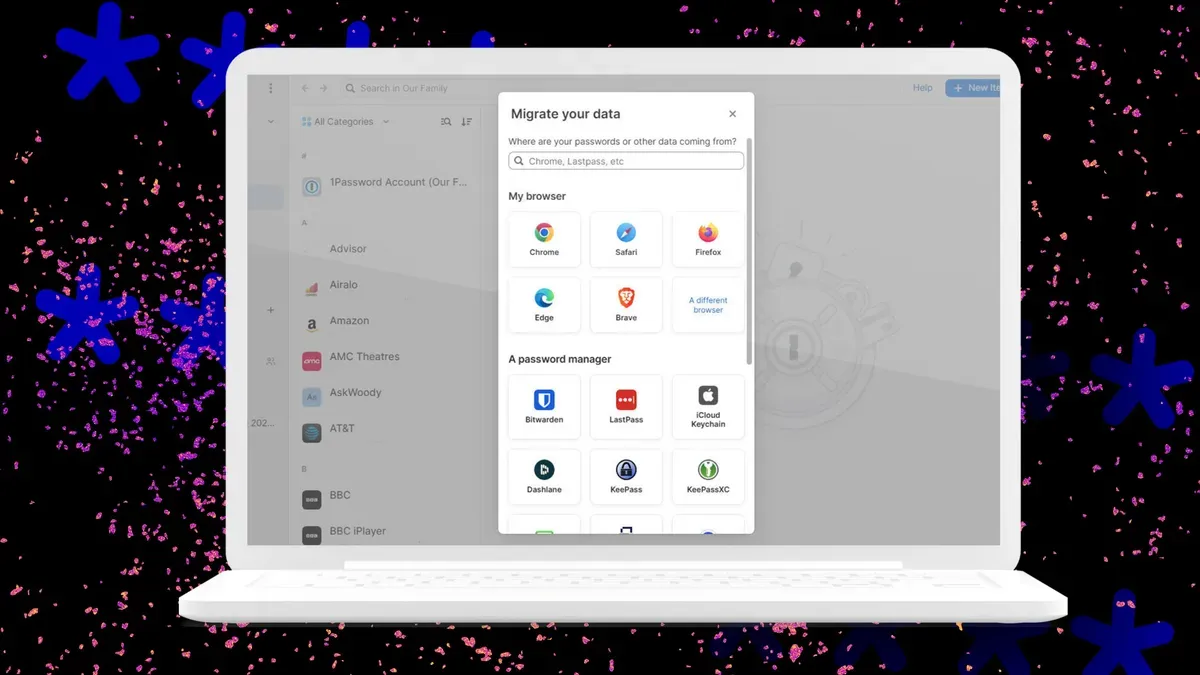
Switching password managers is easier than it sounds. Most let you export your current passwords so you can import them into a new product, and while you will need to configure settings in the replacement app, your accounts should all be in place. Start by installing the new password manager, creating an account and signing in.
Add the browser extensions from the Chrome Web Store, Firefox Add-Ons or Edge Add-Ons so the new app can capture and autofill credentials. Next, export your passwords from the old manager as a CSV file via Settings → Export, which will usually prompt for your master password.
The CSV is not encrypted and stores passwords in plain text, so keep it on your PC and avoid saving it online or in other vulnerable locations. Import the CSV in the new manager through Settings → Import, or select your previous product if it appears in the list.
password managers, export passwords, csv file, import passwords, browser extensions, chrome extension, firefox add-ons, edge add-ons, master password, autofill credentials