
What Roku TV resets do and how to remove a device from your account
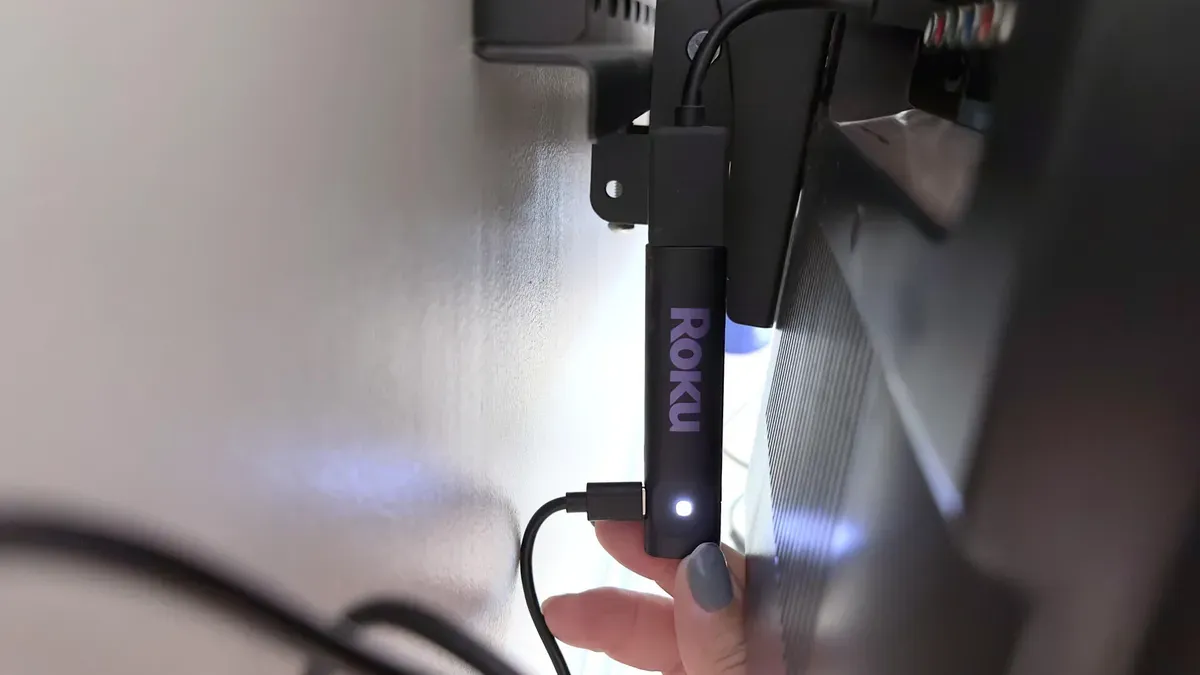
A guide explains the differences between Roku TV resets and what each one affects, including how to remove a device from your Roku account if you plan to give it away or sell it.
A system restart (soft reset) simply reboots the device and does not delete apps, network information, or sign-ins. A factory reset removes device-specific settings and preferences, but purchased or rented movies remain linked to your Roku account and will reappear after you set up and sign back in; you will need to reinstall channels and log into them.
A network connection reset (Home > Settings > System > Network connection reset) clears all saved Wi‑Fi and network settings, forcing the Roku to forget every network; after that you must reconnect to Wi‑Fi as if setting the device up for the first time. A reset cannot repair hardware failures such as faulty HDMI ports or damaged memory, though it does fix most software issues.
If your remote does not work at all, the guide notes you can try the Roku mobile app as a temporary remote. The author says, "I suggest you restart it once a week" to refresh memory and give a temporary performance boost.
To remove a device from your account, visit my.roku.com and sign in, go to your account, open the section called My devices, select the device you plan to give away, choose the "Remove device from account" option, and confirm the device no longer appears in your account list.
Key Topics
Tech, Roku, Roku Tv, Roku Account, Factory Reset, Network Connection Reset