
Why you shouldn't skip TV firmware updates — how to install via USB
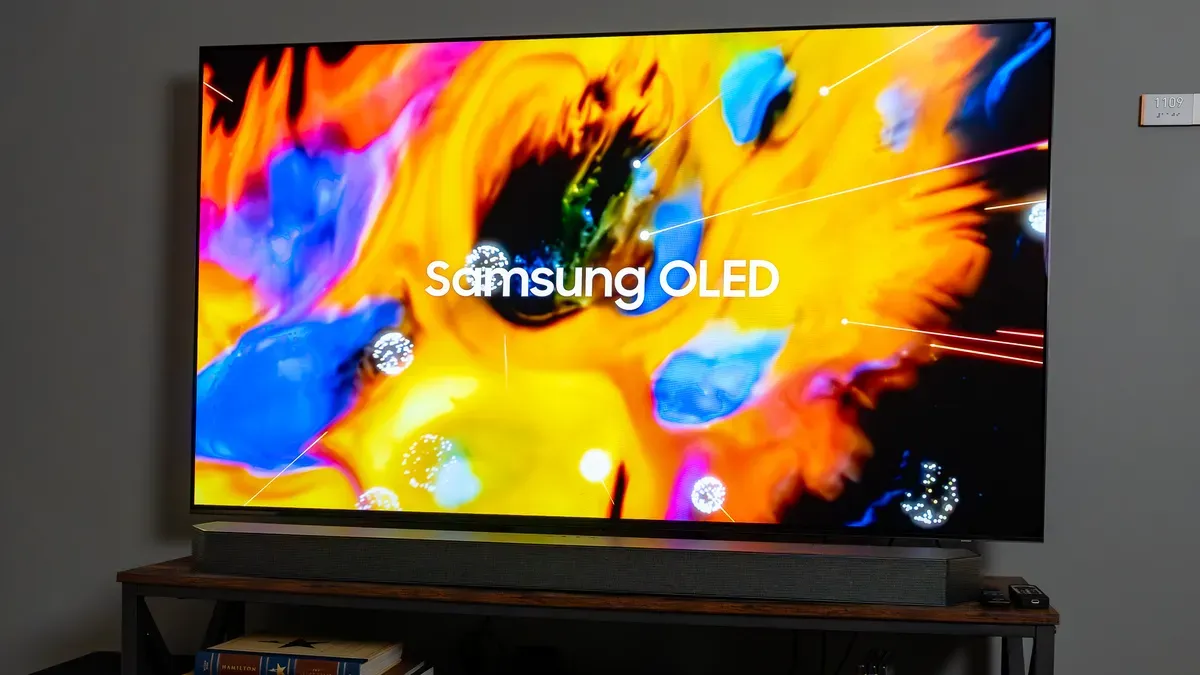
Firmware updates keep your smart TV current with the latest software, features and security patches. Most sets check for and install updates automatically over Wi‑Fi when connected and when automatic updates are enabled; you can usually find a "Check for Updates" option in the TV's settings.
If Wi‑Fi is unstable or you prefer a manual approach, you can install updates using a USB drive. Start by locating your TV's model number, either on the sticker on the back of the set or in the settings menu under "About" or "Support". Visit the manufacturer's support or downloads page, search by model number and download the latest firmware, paying close attention to region and version information — installing the wrong firmware can "brick" the TV.
The firmware will often arrive as a ZIP; extract it to reveal files such as .bin or .img. Use a USB stick formatted as FAT32 and back up any data before reformatting, since that erases the drive.
firmware updates, smart tv, usb drive, wi-fi, automatic updates, model number, manufacturer support, zip file, fat32, bricked tv