
Six steps to clear cache and improve Roku TV performance
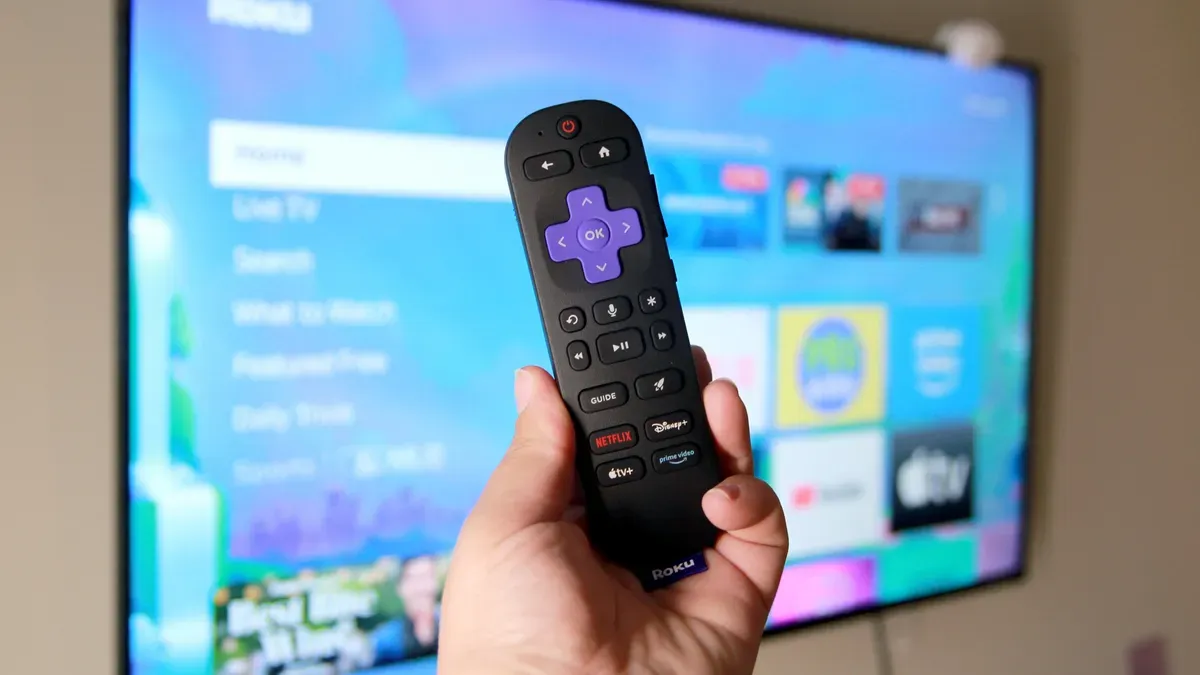
ZDNET outlines six steps Roku TV owners can try to clear accumulated cache and address stuttering, buffering or freezing that can slow the system. Start simple: unplug the unit for a few minutes and plug it back in, which sometimes resolves glitches. You can also restart via Settings by going to Settings → System → Power → System Restart (the TV should restart in about 30 seconds).
A hidden remote sequence can force a restart: press Home five times, Up once, Rewind twice, then Fast Forward twice, and wait for the device to reboot. If a single app is causing trouble, the article recommends uninstalling and reinstalling it: from the Home screen highlight the app (do not open it), press the * button, select Remove Channel, then reinstall and set it up again; note this will erase that app's user data and settings.
To address network issues, reset the connection via Settings → System → Advanced System Settings → Network Connection Reset → Reset Connection; the TV will restart and you will need to go to Network → Set Up Connection → Wireless, choose your Wi‑Fi network and reenter its password.
The article warns that this removes all network details and you may need to reconnect other devices attached to the Roku TV. As a last resort, ZDNET describes a factory reset that erases personal settings, user profiles, login credentials and installed apps.
Key Topics
Tech, Roku Tv, Roku Remote, Cache, Factory Reset, Wi-fi