
Ten Samsung Galaxy settings to change for a smoother One UI experience
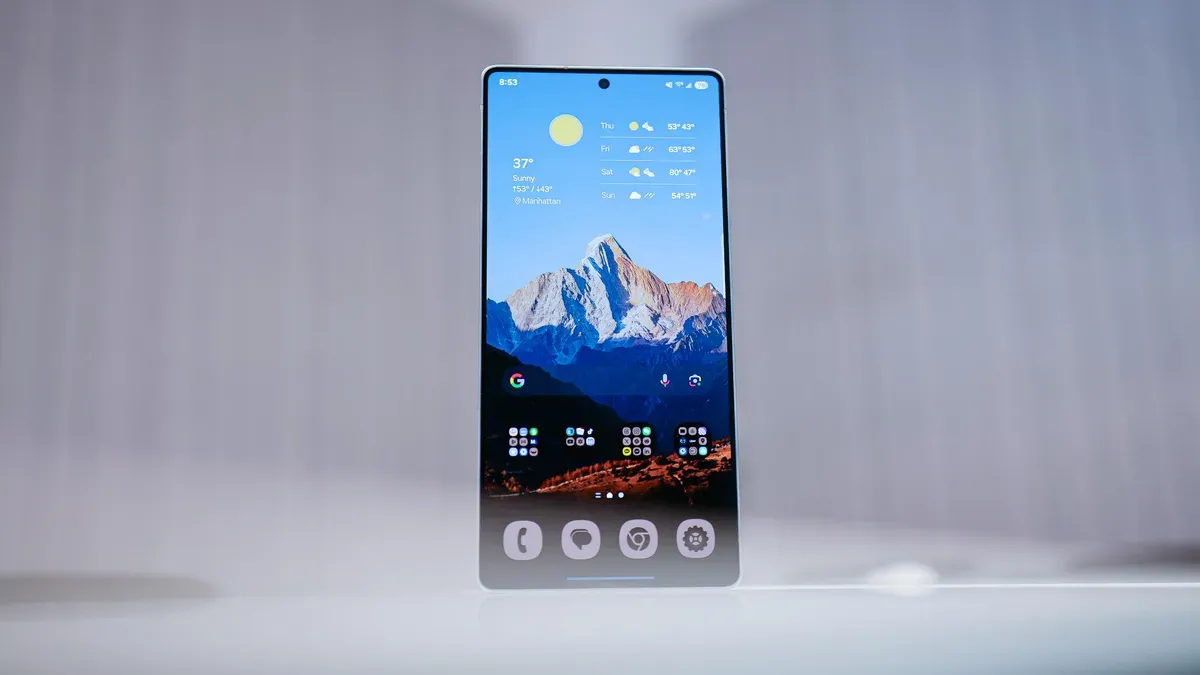
Kerry Wan at ZDNET recommends 10 settings (plus a bonus) to adjust on Samsung Galaxy phones to improve the One UI user experience and better tailor the device to individual needs. Her recommendations include turning off pop-up notifications; switching from three-button navigation to gesture navigation; setting the display to the highest available screen resolution (Settings > Display > Screen resolution), which she notes uses more battery; changing the side key long-press to show the power menu; adjusting lock screen notifications to Cards and hiding sensitive content; signing in to a Samsung account for access to Galaxy Themes, Galaxy Store and other services; installing the Good Lock app and its Home Up/One Hand Operation+ features; uninstalling or disabling preinstalled apps such as TV, CoPilot, Facebook, Samsung Tutor and OneDrive; customizing the home screen with widgets, a 5x5 icon grid and the wallpaper color palette; and enabling Always On Display set to Always (Settings > Lock screen and AOD > Always-on Display > Always).
As a bonus, she shows how to revert Samsung’s new notification-panel layout to the previous combined view via Panel Settings. Wan notes some settings may be phone-specific.
Key Topics
Tech, Samsung Galaxy, One Ui, Kerry Wan, Good Lock, Samsung Account